Generating A Token
To initiate the registration process, administrators need to generate a registration token. This token serves as the key for enrolling devices and can be created through the KACE Cloud admin interface. You can have a maximum of 10 concurrent active tokens; once reached the limit, the +Add button disables to prevent a new token generation.
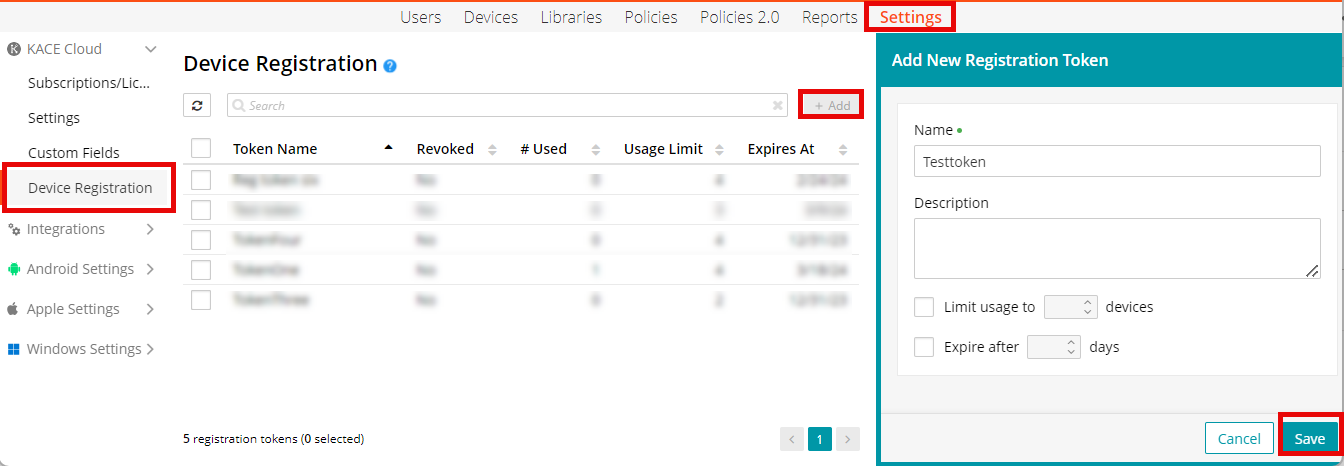
To create a token,
- Go to the Settings tab in the top navigation.
-
Click Device Registration and then, click the +Add button.
The Add New Registration Token pane opens on the right side. -
Enter the details-
- Name – name of the token
- Description – details about the token
- Limit usage to – the number of devices that can use the token for registration
- Expire after - the token validity period (maximum 365 days)
-
Click Save.
The token appears in the token list on the Device Registration page and the details are displayed in the right pane.
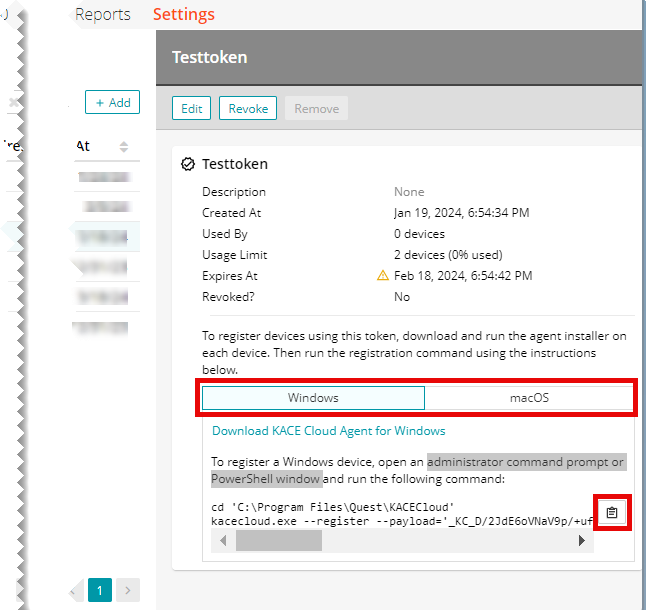
- Verify the token details.
- Download the agent installer for the desired device by clicking Windows or macOS. You can also copy the token string by clicking the copy button.
|
|
NOTE:You can distribute the token and installer to end users through email or utilize other MDM providers to streamline the process. |
